







 Garantía de entrega






Artículo: AMZ-B07QDLNGFZ
SmartSee
SmartSee Anycast HD Wireless Display Adapter WiFi 1080P Mobile Screen Mirroring Receiver Dongle for iPhone Mac iOS Android to TV Projector Support Miracast Airplay DLNA
Detalles del producto
Disponibilidad
En stock
En stock
Peso con empaque
0.20 kg
0.20 kg
Devolución
Si
Si
Condición
Nuevo
Nuevo
Producto de
Amazon
Amazon
Viaja desde
USA
USA
Sobre este producto
- What is this item? It is a Wireless HD Display Adapter, what you see on your mobile device(smartphone/tablet), you can see on a big screen(TV/monitor/projector) via this adapter. Do I need this item? Yes, everywhere. At home: you can mirror your phone/tablet to your TV, no need to stare at the phone alone, watch TV together and free your hands. At hotel: Setting the TV or TV box is a little troublesome? Just mirror your mobile device to TV or projector by using this item. In a meeting room: No need other cables, just connect this item to mirror your tablet pc on your projector wirelessly. In a classroom: Share your content of courses on big screen wirelessly. How do you use it? Note: Not compatible with the apps that have protocol protection, such as Netflix/ Amazon Video/ HBO go/ Hulu Plus sky go/DIRECTV etc Setup AnyCast by the following steps : Step 1: Plug AnyCast dongle into HD port on TV and switch TV to the right input source. Step 2: Connect WiFi cable (micro USB head) to AnyCast dongle. Plug USB cable into an external USB power adapter(power adapter is not inculded). Step 3: Now you will see the AnyCast page Setup on your iPhone/iPad/Mac Step 1: Connect AnyCast in WiFi Setting on iPhone Step 2: Go to Safari and input 192.168.203.1 to come to the setting menu Note: In setting menu, you can connect your home wifi here by clicking "Internet" and Choosing your home Wifi to connect. Once connected, no need to reconnect again. Also, language , Anycast password, and Resolution can be changed by yourself in setting page. Step 3: Pull up the Control Center on iPhone and go to Airplay mirroring, and select AnyCast dongle to start to mirror. Setup on your Android device: Press the button on the dongle to switch to Android mode Find Miracast on your Android device and pair with Anycast to start to mirror screen.
₡ 14,073
1% OFF
₡ 13,868
IMPORT EASILY
By purchasing this product you can deduct VAT with your RUT number
₡ 14,073
1% OFF
₡ 13,868
 Llega en 5 a 10 días hábiles
Con envío
 Tienes garantia de entrega
Este producto viaja
de USA ![]() a tus manos en
a tus manos en
![]()
 a tus manos en

Conocé más detalles
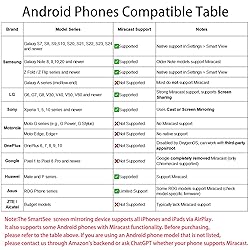
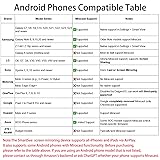
Wireless display: SmartSee Wireless display adapter can mirror the screen of phone, tablet, laptop, pc to your TV/projector/monitor wirelessly. Share videos, photos, movies, files to a big screen easily. What shows on your screen can shows up on another big display. Cast a small screen to a large one. Make your TV a smart TV. Easy to use: No App or drivers required. 3 steps to enjoy media on large screen: Plug->Connect->Mirroring: Plug the dongle into the HD port of your TV, projector, or monitor>Power it using the included USB WiFi antenna>Select the correct HD channel. The Anycast UI will show up, recognize your IP address and match your local language automatically. Connection steps differ by system,follow the User Manual based on your device type. Compatibility(Multi-Platform Support) and Limitation: Support Macbook series, iOS 9.0+, Android 5.0+, Windows 10 devices through Airplay, Miracast, DLNA protocol. Notes: 1. NOT supports for Google Pixel, not for Motorola. 2. Android and Windows devices must support Miracast protocol for screen mirroring to work. 3. Not compatible with the apps that have protocol protection, such as Netflix/ Amazon Video/ HBO go/ Hulu Plus sky go/DIRECTV etc. Wide Usage Scenarios (Professional & Everyday Use): Business & Office-Mirroring screen to projector, share PPT, mail, documents and other content wirelessly. Education & Training-Mirroring screen to big screen, share teaching content, classroom teaching, live demos, and workshops wirelessly. Home Entertainment- Watch with your family at home. Mirroring screen to TV, share photos, videos, movies wirelessly. Travel & Mobile Work- Carry it while travelling, share your phone to TV anytime. Retail & Exhibitions-Product demos, promotional videos, and catalogs. etc. Usage Notes & Practical Tips: Anycast dongle is built-in 2 Modes-AirPlay Mode: For all iOS devices; Miracast Mode: For Android and Windows devices. A built-in mode switch button allows switching between AirPlay Mode (iOS) and Miracast Mode (Android & Windows) to match your device system. Press and hold the button for 3-5 seconds to restart the dongle(resolves most connection issues). Note: Always ensure the display is set to the correct HD input. Detailed connection please check the detailed description below or the User Manual according to your device system. Regular OTA Update: This adapter supports automatic OTA (Over-The-Air) firmware updates directly from the cloud. Once connected to WiFi, the dongle upgrades itself to ensure ongoing compatibility with the latest iOS, Android, and Windows versions.
Compra protegida
Disfruta de una experiencia de compra segura y confiable
![]() Garantía de entrega
Garantía de entrega
Con Tiendamia todas tus compras cuentan con Garantía de Entrega o devolución total de tu dinero.
Compras 100% seguras y garantizadas, para que pidas lo que sueñas y lo recibas del mundo a tu puerta.
Tarjetas de Débito y Crédito
Pagando en Colones ( ₡ )

Visa

Mastercard

American Express
Pagos a través de PayPal
Compra procesada en dólares con dinero en cuenta o tarjetas internacionales.

PayPal

